Category Archives: Sitecore

How to filter AD roles or users using Sitecore’s LDAP module

Problem
Every time I have used AD for providing access to Sitecore, the active directory (AD) structure is crazy and recently I had a customer that had over 18000 roles, which made it difficult to assign roles and it killed the performance of the Sitecore client, as each user had at least 500 roles. Therefore Sitecore to evaluate the combination of a lot of roles to determine if they had read access or not.
18000I talked to the department responsible for the AD setup about changing and or creating a folder that only contained the Sitecore related roles, but this was not possible.

Initially I thought I would have to make own LDAP provider which derives from the standard provider, but I discovered this was not necessary as the LDAP module provides the functionality as standard.

Custom Filters
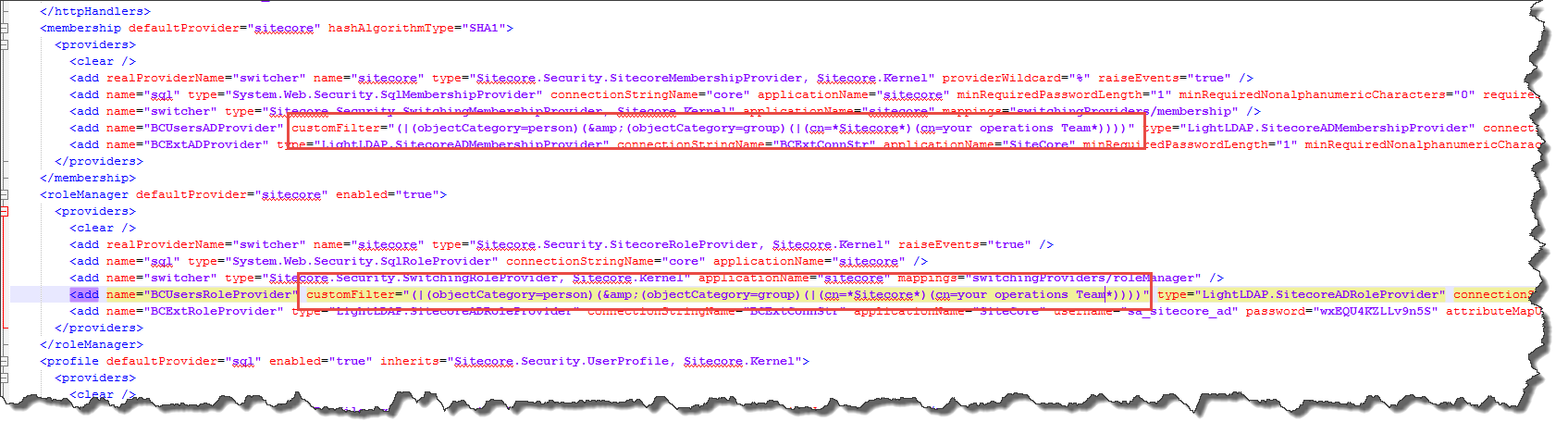
Custom Filter provide the ability to filter the roles and or users returned from the AD (see section 4.1 for full documentation).The custom filter uses the standard LDAP query syntax (see MSDN) to specify how the user or roles are filtered.

The following example ensures only roles, which contain Sitecore and or the special operations role; are imported into Sitecore. The Customcustom Filter

According to Sitecore documentation, both the User and Role provider must have the same CustomFilter, and that is why the (objectCategory=person) is added so all users are also imported regardless of their name.

I hope this blog post will help others using LDAP to control what roles or users are shown within sitecore.

Sitecore – RebuildSearchIndex|System.FormatException: Unrecognized Guid format.

After upgrading from 7.5.141003 to 7.5.150130, when I tried to rebuild the search index or the Link database I got the System.FormatException: Unrecognized Guid format after sometime!

Uli (@UliWeltersbach) had already written a great blog post about this exception and how to find the items causing the issue and how to fix the issue.

I would recommend you read Uli’s blog, but here is the quick version – The exception is caused by an error in the _tracking field used by the Analytic’s engine, which is very strange as the website has disabled the Analytic’s, see below?

disabled

Analytics is disabled, so why when I try to save the item to I get the following exception???

cant save

As I am not a very trusting person, I swapped to using raw values in the content editor and I could see that there was in fact data in the __tracking field!

raw

Cause

Initially the website did have analytics enabled I guess, but as some point it was disabled. The site was upgraded from 6.4 to 7.5 and somewhere along the line one or more of the update packages form sitecore did not update the __tracking field as analytics was disabled.

Therefore the old contents in the __tracking file were not in the correct format and caused the exception.

Solution

In my case deleting the contents was enough to fix the issue.

Another approach is to enable analytics edit the tracking field and save again, and it is converted to the correct format.

Sitecore SPEAK Insert Link Dialog – missing icons & sitecore tree – Don’t panic, U didn’t break it!!!!

I was upgrading a solution from 6.2 to 7.2 and it had a number of custom fields that no longer worked,  so I started to fix the code.

One of the custom fields showed the SPEAK  Insert link dialog and after making a lot of changes, I noticed that I had broken the SPEAK dialog, see below

Speak dialog....

I reviewed the changes I had made, and could not see what could have caused this issue? But to be on the safe side, I undid all of my changes, did a full build, etc and still I had the issue 😦

So I tried to open the dialog from a sitecore standard field, and it was also broken 😦

Solution

Whist starting to panic, after 5 minutes I noticed that the dialog had fixed itself!!!!

It appears that after a restart of the website the first time you open the “Insert link” dialog you have to wait 5 minutes for it to start working, after that it works straight away.


Missing dialog’s after upgrading to Sitecore 7.5

After upgrading to Sitecore 7.5 there where a number of SPEAK dialog’s (select media dialog, insert item link, etc) that would open and show the front page of the website?

I eventually tracked it down to they fact that their where a number of duplicated SPEAK items in the core database see the image below and the fact that the solution had some custom code which showed the front page if an item has no renderings defined (not a good idea).

items


I believe that whist upgrading a update package failed and or did not remove the unused items.

Solution

Delete all the items that have the folder icon, and then all the dialog should work again, of course take a backup of the items before deleting them.

Result of the Danish Sitecore Developer Group survey

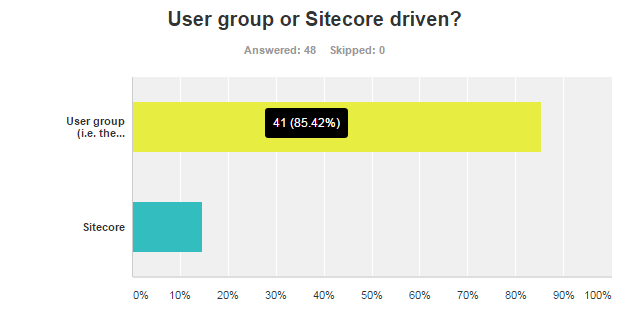
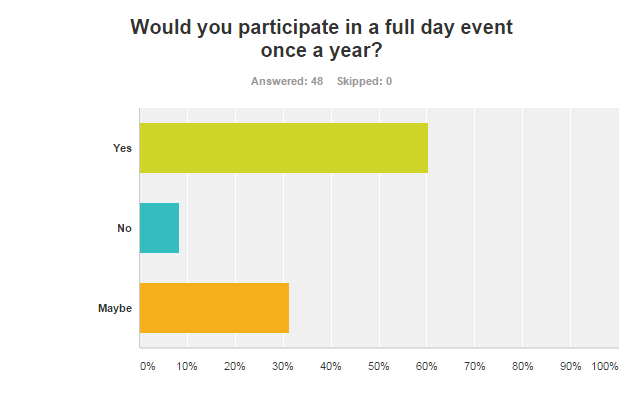
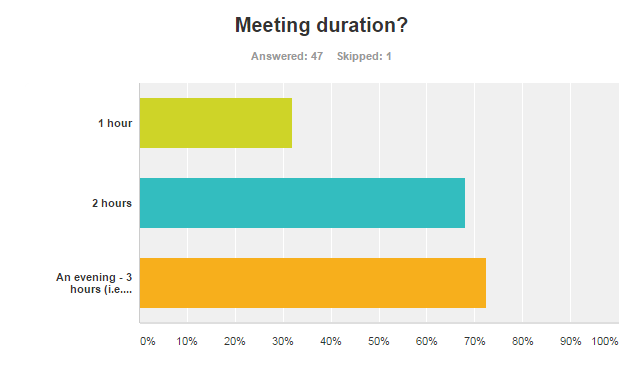
The survey is now closed and here are the results:

q9 q7Danish Sitecore Developer Groupq6 q5 q4 q3 q2 q1


Free text comments received:

  1. I liked the way that DSDG has been untill now
  2. thank you 🙂
  3. Great questions
  4. I think meetup could be extended to other .NET CMS systems and related technologies. Why not grouping with Umbraco, EpiServer etc. to broaden our knowledge.
  5. great to have a SC community like DSDG
  6. Good to see that the group is thriving. It’s a struggle to get things up and running here in au – keep the community-run group.
  7. If anything, clearer expectations of meeting content would be really nice. It would allow me to better decide whether to go or not – especially if the meeting frequency would go up (which I’d prefer). So for example, if someone was really into a particular subject, then they could get together and I would know better up front what the subject was really about
  8. Only been to 1 meeting, but it was a very positive thing and like to come to more

Sitecore 7.5 SQL Provider (WFFM 2.5) – Added a button to download data as CSV

As promised I have added the ability to download the form data as an Excel spreadsheet (CSV) .

I have created an include file /app_config/WFFM.SQLServer.SaveToDatabase.config to bind the command to the class that exports the CSV.

<command name="forms:exportformdata" type="WFFM.SQLServer.SaveToDatabase.Infrastructure.Commands.ExportFormDataCommand, WFFM.SQLServer.SaveToDatabase" />

Open the content editor navigate to any form, select the “Forms” tab, and click on the “Export Data as CSV” (see below).

For more information about the module please refer to original blog post, or get the sitecore package from sitecore marketplace  or the source code from GitHub for the source.

CSV button

System.Web.HttpException: Request timed out. – Installing Sitecore CMS 7.1 rev. 130926 Update Package

Whilst upgrading a solution from 7.0 to 7.1 in pre-production I got the following timeout exception.

timeout error


Of course the first thing I did was set the timeout value of the httpRuntime to a massive number in the hope that this would fix the issue., but it didn’t 😦

<httpRuntime maxRequestLength="512000" executionTimeout="6000000" enableKernelOutputCache="false" />

The problem is with IIS application pool setting “Ping Maximum Response Time” which is the time in seconds the worker process is given to respond to health monitoring ping. After 5 missed responses the work process is timed out and causes the afore mentioned exception

There are 2 solutions:

  1. Set ping enabled to false
  2. Set the Ping Maximum Response Time (seconds) to a large value

ping disabled

Of course remember to reset these values after you have upgraded.

I have to give the credit and say thanks to Marina from Sitecore support, as Marina identified this issue 🙂


SQL Provider (SaveToDatabase Action) for Web Forms For Marketers (WFFM 2.5 – Sitecore 7.5)

With the release for WFFM 2.5 for Sitecore 7.5; SQL server is no longer supported (see release notes) as each time a form is submitted it automatically saves the form data in the xDB (MongoDB) and associates it with the current contact (used to be called visitor).

I believe MongoDB is a much better choice than SQL for storing non-structured data that is generated by WFFM and in addition it can also be used to tailor the experience to the current contact (visitor) i.e. don’t show them the form if they have already filled it out, etc.

Problem

Unfortunately I have a number of customers that want to upgrade to Sitecore 7.5, but due to a number of business and operational reasons are not ready to migrate MongoDB. Therefore they wish to continue storing their form data in the existing SQL database.

Solution

I decided to create a simple SQL provider for WFFM 2.5, that would allow customers to continue saving/retrieving data frm the existing SQL database.

The shared source module WEB FORMS FOR MARKETERS 2.5 – SQL PROVIDER (SAVETODATABASE) is available at Sitecore’s marketplace and the source code is available at GitHub.

This initial version is very simple and provides the following functionality:

  • Save data to a WFFM SQL database (SaveToDatabase Action).
  • Retrieve all submitted data for a given form.
  • Download the data as a CSV file (see separate blog post)
  • Specify a date range to be exported (see article)
  • Define the CSV Delimiter (see article)

It was my intention to port the forms report viewer from a previous version, but the architecture has changed considerably to accommodate xDB and it would have required me to re-code and override a lot of classes. In addition there were a number of UI control libraries that the forms report viewer relies upon which are no longer used/bundled with Sitecore 7.5.

Therefore I intended to implement the ability to down load the data for a given form as an CSV file. So the data can be analysed and sorted using Excel, which in my experience is how the majority of customers used WFFM data.

Installation

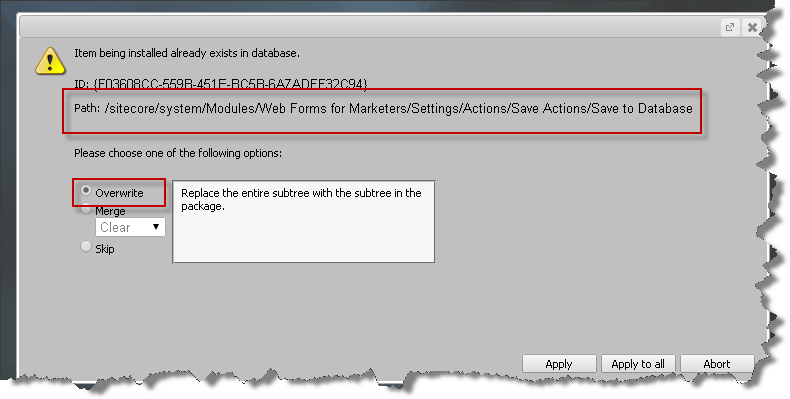
Install the WFFM.SQLServer.SaveToDatabase-1.4.zip package, note you prompted that the Save to database item already exists, select overwrite and aply, see below

overwrite

Ensure the WFM.ConnectionString settingin /app_config/include/Sitecore.Forms.config is set to the name of the connection string for the WFFM SQL database i.e.

<setting name="WFM.ConnectionString" value="wfm" />

where the “wfm” connection is defined as follows:

<add name="wfm" connectionString="user id=[USER ID];password=[password];Data Source=[Server];Database=[WFM DATABASE];Connect Timeout=30" />

How To Save Data

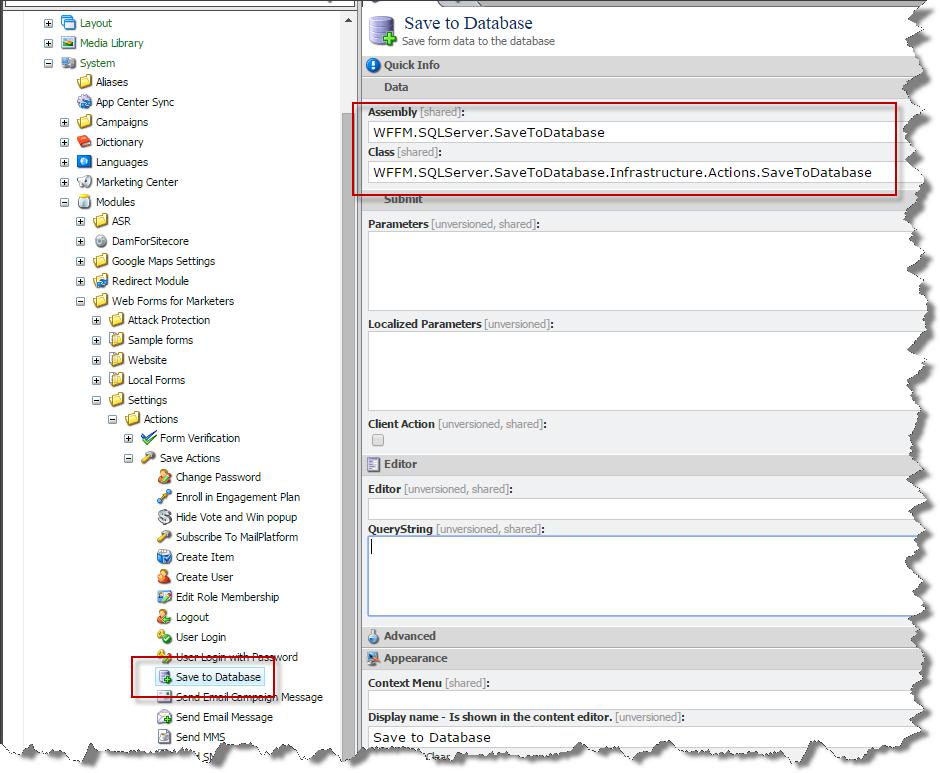
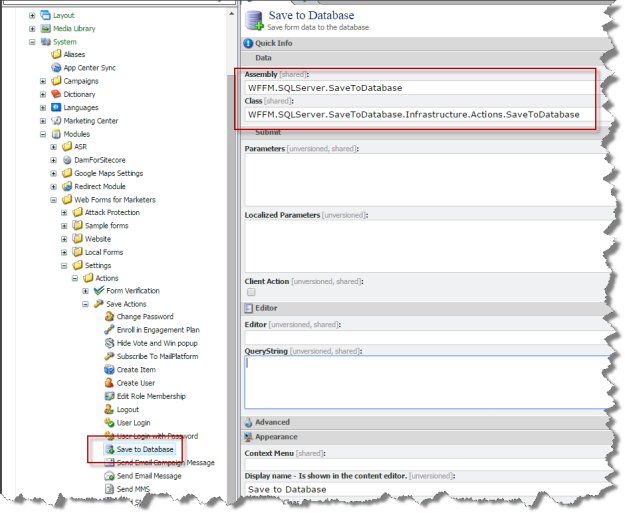
Like previous version of WFFM you use the “Save To Database” action to save the submitted form data to the SQL database. The SaveToDatabase action is still /sitecore/system/Modules/Web Forms for Marketers/Settings/Actions/Save Actions/Save to Database. In fact it is the same item from previous versions, so all existing forms that use the SaveToDatabase action will continue to work without making any changes.
save to database item

The only change is that class is WFFM.SQLServer.SaveToDatabase.Infrastructure.Actions.SaveToDatabase, from the WFFM.SQLServer.SaveToDatabase assembly.

Retrieve data for a given Form

To Insert new form data and retrieve data there is a FormReposiotry class which has a Get function to retrieve a list of form data for a given form id, seee below

public IEnumerable<IForm> Get(ID formId)

I have added a button to download data as CSV see this article.

And it is now possible to specify a date range to export and the delimiter used to separate the columns in the CSV file (see article)

Links

marketplace.sitecore.net/Modules/Web_Forms_for_Marketers_SQL_SaveToDatabase.aspx

github.com/TakeitEasyAlan/WFFM-SQL-Server-SaveToDatabase

Sitecore Fast Query Syntax – Can kill your SQL Server or website

Over the years I have worked on lots of websites that have performance issue caused by sitecore queries that iterate over too many items, usually searching through descendants.

In development where there are not too many items the query performs OK. The site goes live and they start to add content and soon there are 1000’s of items and the queries becomes slower and slower over time. A typical example is searching for the 10 latest news, articles, blog’s etc.

At this point a fix is made by changing the queries to use the “fast:” syntax. There are a lot of articles already explaining this in detail, so this is just a brief intro, the fast syntax translates the query directly into an SQL server database query, and therefore for some queries it can perform faster, use less memory and less CPU.

But a warning it bypasses all caching that sitecore provides and make a request directly to the database every time the query is executed; in development this tends to outperform the standard queries that would have to iterate over a lot of items.

In development you usually test the normal query against the fast syntax query to establish if it is quicker and if it’s quicker you use it and everybody is happy… but that is not the full story.

Let’s assume each page generates 10-20 queries that rely on fast syntax to retrieve their items. Therefore each page request generates 10-20 calls to the SQL database, I’ve seen sites that generate 100’s of SQL request per page 😦

In development this would typically not be an issue and or not noticed, as only one page at a time is requested, but in a production on a website with lots of requests it can kill the SQL database and or slow the site down as sitecore itself cannot retrieve items form the database, as the SQL server is busy with all the fast queries.

Therefore you have to be VERY VERY CAREFUL with the use of fast queries.

I would say in 97% of cases – if your queries slow and it is caused by iterating over to many items the correct solution is to use Sitecore search i.e. lucene, Solr, Coveo or another indexer to retrieve the items.

No images after upgrading to Sitecore 7.5

With the release of Sitecore 7.2 encode name replacements now applies to media URL’s, prior to 7.2 it only applied to content items, and therefore media URL’s with spaces used to be like the following:

/-media/some%20item%20with%20space/test-xx-yy.jpg

But with Sitecore 7.2, they can be as follows:

/-media/some-item-with-space/test-xx-yy.jpg

This change in fact caused all the images on the site I was upgrading to disappear, but first a quick introduction to Encoding name replacement.

It provides the ability to specify text replacements to use when the media manager generates the friendly URL for a media item. The element /sitecore/encodeNameReplacements in the web.config; contains a number of replace elements and each replace element defines what to find and replace.

<encodeNameReplacements>
      <replace mode="on" find="&amp;" replaceWith=",-a-," />
      <replace mode="on" find="?" replaceWith=",-q-," />
      <replace mode="on" find="/" replaceWith=",-s-," />
      <replace mode="on" find="*" replaceWith=",-w-," />
      <replace mode="on" find="." replaceWith=",-d-," />
      <replace mode="on" find=":" replaceWith=",-c-," />
</encodeNameReplacements>

Strangely enough replacing a space with a dash is not defined by default, but I have added it to almost every solution as %20 in URL’s kills SEO. Below is the element you need to add to achieve that spaces are replaced by dashes.

<replace mode="on" find=" " replaceWith="-" />

Nemesis and side effects

I have reported to Sitecore support a number of times that I thought that encode replacements should apply to media URL’s. So with 7.2 I got my wish and this is where nemesis strikes me as after upgrading to Sitecore 7.2 all the product images disappeared from the site.
The solution has over 50000 images which are synchronized from their PIM (Product Information Management) and name of media item had a space and a dash.
If you want to have spaces replaced with dashes the one restriction is that you can no longer have dashes in the items name. Because when Sitecore tries to resolve the URL it applies the reverse of any encode replacements i.e. sitecore replace all dashes with a space to find the item path.
For example assume that your media item has a space and a dash in its name.

/media library/cars/myCar 26-10-2013

The URL will be

/~media/cars/myCar-26-10-2013.jpg

But when Sitecore tries to resolve the URL to find the image it replaces all the dashes with spaces (i.e. the reverse of the encode name replacement) and then it can’t find the item at the following path.

/media library/cars/myCar 26 10 2013

There are a number of solutions

  • Write script to replace all dashes with a space in the media library
  • Create a custom media provider, which doesn’t execute the encode replacements.

Whist I try to avoid modifying standard sitecore behavior in this case I choose to override the GetMediaUrl of the MediaProvider, as it is not possible to change the image names due to the business requirements of the site.

Anyway I hope this helps anybody if there images disappear after upgrading to 7.5.