Tag Archives: Sitecore

No images after upgrading to Sitecore 7.5

With the release of Sitecore 7.2 encode name replacements now applies to media URL’s, prior to 7.2 it only applied to content items, and therefore media URL’s with spaces used to be like the following:

/-media/some%20item%20with%20space/test-xx-yy.jpg

But with Sitecore 7.2, they can be as follows:

/-media/some-item-with-space/test-xx-yy.jpg

This change in fact caused all the images on the site I was upgrading to disappear, but first a quick introduction to Encoding name replacement.

It provides the ability to specify text replacements to use when the media manager generates the friendly URL for a media item. The element /sitecore/encodeNameReplacements in the web.config; contains a number of replace elements and each replace element defines what to find and replace.

<encodeNameReplacements>
      <replace mode="on" find="&amp;" replaceWith=",-a-," />
      <replace mode="on" find="?" replaceWith=",-q-," />
      <replace mode="on" find="/" replaceWith=",-s-," />
      <replace mode="on" find="*" replaceWith=",-w-," />
      <replace mode="on" find="." replaceWith=",-d-," />
      <replace mode="on" find=":" replaceWith=",-c-," />
</encodeNameReplacements>

Strangely enough replacing a space with a dash is not defined by default, but I have added it to almost every solution as %20 in URL’s kills SEO. Below is the element you need to add to achieve that spaces are replaced by dashes.

<replace mode="on" find=" " replaceWith="-" />

Nemesis and side effects

I have reported to Sitecore support a number of times that I thought that encode replacements should apply to media URL’s. So with 7.2 I got my wish and this is where nemesis strikes me as after upgrading to Sitecore 7.2 all the product images disappeared from the site.
The solution has over 50000 images which are synchronized from their PIM (Product Information Management) and name of media item had a space and a dash.
If you want to have spaces replaced with dashes the one restriction is that you can no longer have dashes in the items name. Because when Sitecore tries to resolve the URL it applies the reverse of any encode replacements i.e. sitecore replace all dashes with a space to find the item path.
For example assume that your media item has a space and a dash in its name.

/media library/cars/myCar 26-10-2013

The URL will be

/~media/cars/myCar-26-10-2013.jpg

But when Sitecore tries to resolve the URL to find the image it replaces all the dashes with spaces (i.e. the reverse of the encode name replacement) and then it can’t find the item at the following path.

/media library/cars/myCar 26 10 2013

There are a number of solutions

  • Write script to replace all dashes with a space in the media library
  • Create a custom media provider, which doesn’t execute the encode replacements.

Whist I try to avoid modifying standard sitecore behavior in this case I choose to override the GetMediaUrl of the MediaProvider, as it is not possible to change the image names due to the business requirements of the site.

Anyway I hope this helps anybody if there images disappear after upgrading to 7.5.

Is it time to change the item structure of sitecore?

I hope with this blog to start a discussion about how we structure non-content items within sitecore. It is not about Component based architecture, that is just to set the context.

Sitecore item structure has always been very type orientated, see below. Where the content is structured by type instead of its logical grouping (component) i.e. you have to store the templates under the template folder, sub layouts under the sub layout folder, etc.

by type

For many years I have used component architecture where the logical grouping is more important than type i.e. Function before type. Use “Agile design principle”, where functionality is logically grouped based on cohesion. Focus on re-usability, maintainability and releasable.

by comp

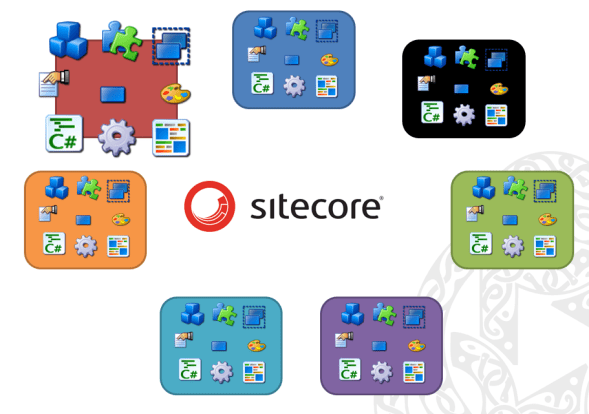
It provides a good way to model a websites, as a website typically consist of one or more pages types, where each page type contains a number of components. The image below helps identify typical components.

break down

Each component usually consists of a number of non-content items i.e. layouts, templates, renderings, media, settings, look up values, etc.

Whist the visual studio project for the component can group the related files (C# classes, sub-layouts, layouts, XSLT’s, images, etc.)  prior to Sitecore 7.x this is not possible for template, layout, etc. items, they have to be stored under their respective root item, which causes items being fragmented throughout the item structure.

To assists in locating items related to a component, we are forced to use folder naming conventions to help track where a components items are located:

  • Templates                 /sitecore/templates/components/[COMPONENT NAME]/….
  • Sub-Layouts             /sitecore/layout/sublayouts/components/[COMPONENT NAME]/….
  • Renderings               /sitecore/layout/renderings/components/[COMPONENT NAME]/….
  • Layouts                    /sitecore/layout/layouts/components/[COMPONENT NAME]/….
  • Media Library          /sitecore/media library/components/[COMPONENT NAME]/….
  • Data source items (i.e. drop down values for the component) – usually specific to the implementation/component

SPEAK/ROCKS sets non-content items free!

Since the release of SPEAK and if you use Sitecore Rocks it is possible to store your template, layouts items etc. outside their respective root folder 🙂

This is in fact the philosophy and best practices for SPEAK where each application must be self-contained and store all templates, layouts, data source items, etc. under the root application item.

The only exception to this, is the dictionary items which must be stored under the dictionary item, please Sitecore can you fix this 🙂

This afore mention approach has the following advantages

  • Each component is self-contained an isolated from other components.
  • It is easier to maintain as all the items are grouped together and not spread out throughout the tree structure.
  • Easier to remove a component as you only have to delete a single root item.
  • Easier to move a component from one website to another, as you only have to take the root and its children.

One issue it does not help with is if a component modifies the Sitecore client as that is defined in the core database.

So if we move to a SPEAK based structure for non-content items it could be as follows:

  • Templates               /sitecore/components/[COMPONENT NAME]/templates/….
  • Layouts                    /sitecore/components/[COMPONENT NAME]/layouts/….
  • Sub Layouts            /sitecore/components/[COMPONENT NAME]/sub layouts/….
  • Renderings              /sitecore/components/[COMPONENT NAME]/renderings/….
  • Media                       /sitecore/components/[COMPONENT NAME]/media/…
  • Data Source values /sitecore/components/[COMPONENT NAME]/data source/….
  • etc.                           /sitecore/components/[COMPONENT NAME]/[…]/….

I have not had the opportunity to try this with a customer and the only issue holding me back is that it requires the use of Sitecore Rocks as the Sitecore client itself does not support templates/layout items outside of their folder.

I would love any feedback about the idea of moving templates, etc., out of their respective root folders for a web site, and not just for SPEAK applications.

Sitecore Save Event

I was asked to investigate why the Sitecore client for a Foundry solution was so slow, I discovered that the performance was due to an error in the Friendly names shared source module, whist the fix was relatively simple I decided that it would be a good idea to share some tips whist working with Sitecore events.
But before we dive into the problem and the solution, I thought it would be good idea to give a brief introduction to events and how to react to them

Introduction to Events

In Sitecore it is possible to subscribe to events and in fact cast your own events. Sitecore events are defined in the web.config under the section /configuration/sitecore/events. The Sitecore API events are grouped into the following type of events:

  1. Item – Item save, deleted, renamed, etc.
  2. Publish – Publish begin, complete, begin remote, etc.
  3. Security – Login, Logout, etc.
  4. Template – updated
  5. User – Created, deleted, updated, etc.
  6. Roles – Added, removed, etc.
  7. Database – property changed.
  8. Id Table – added
  9. Media events

How to subscribe for the item save event

In order to subscribe for item saving event you need to add your event handler to the event definition in the web.config, see below (note I removed all the the events for sake of clarity)

config

Then you have to implement the event handler which must accept a sender object and an event arguments object see below.

code

In order to get the item being saved, Sitecore provides a helper function to extract it from the event arguments (see above).

Raise Custom Events

It is possible to raise your own custom events, using the code below. Sitecore and a lot of modules raise their own events which are not defined in the web.config.

Event.RaiseEvent("myevent:happened", myObject, this);


Causing events within an event handler

Well let’s get back to the problem; the Friendly names module iterates over a number of items which defined rules i.e. what to string to find in the item name and what to replace it with.

The functionality is great as it allows the editors to create items with illegal characters, Danish characters etc. and they are replaced with a space and or the URL friendly version. Optionally the the display name updated with original name (with the illegal characters), when the item is saved (either after been created or after being renamed).

The problem came from the implementation where each time it iterated over a rule, EndEditing() was called twice, which in turn would cause an item:saving event to be cast.

cast event

Therefore each time an item was saved, it would generate over 100 save item events and therefore the Sitecore client started to run very slowly. If by mistake a rule had the same find and replace string the code would go into an infinite loop 😦

There are 2 solutions

  1. Re-code the handler – so it iterates over all the rules and then checks if the name has changed, if so the name is updated (therefore if it contains one or more illegal characters only 1 additional saving event is cast)
  2. Disable events from be cast using new EventDisabler()){}

I do not like solution 2, as it is possible that after the item name changes other event handlers should react to the event, therefore I would strongly advise you use approach 1 as an single additional event is acceptable as the item did change.

Performance of event handlers

Always consider performance as the code will be called a lot and will affect the performance of the solution and specifically the Sitecore client.

So please ensure that the code has as small a performance foot print as possible and exit the code as soon as possible, here is a list of common things to check before you actually react to the event.

  1. Check template of item – In most cases you only want to react to an event from a specific type of item, therefore check if the item has that template if not exit.
  2. Check the database – sometimes you only want to monitor events in specific database (i.e. save from the Sitecore client that affects the master database, therefore no need to react to save events for the web database)
  3. Check if the item is a content item
  4. Check if the item is a media item
  5. Check if the user is an administrator
  6. Check if the event affects an item

If the event handler takes a long time, consider starting a background task. In addition consider what to do if the code fails, therefore log as much as possible in the event of an error to help with debugging.

I hope this article helped as it has been my experience that 9 out of 10 performance issue are caused by slow code in pipelines or event handlers.

How to kill Sitecore with a Database connection

Well it’s been a while since my last blog due to the summer holidays and the fact that we have been very busy at Pentia.

Anyway here is my next installment in my “How to kill Sitecore” trilogy.

We recently took over a website that was having a lot of performance issues, and when I looked in the log files I noticed that the database connections were timing out.

So initially investigated if there was an issue with the SQL server, but after profiling and monitoring the database it appeared to have no performance issues, but I noticed that some of the exceptions were coming from the Heartbeat task.

What I believe the heartbeat tasks does among other things is to establish a connection for all the connections defined in the connections section, so that when the first request comes in the database connection is ready to retrieve the data from the SQL server.

The solution had a lot of include files some of which defined connections to databases that no longer existed.

So what happens when you have 4 connection strings that contain a reference to a databases that does not exists, well the hearth beat runs every minute and therefore creates 4 new connections every minute.

The connections were setup to timeout after 20 minutes which meant that after 20 minutes the heartbeat task had created and was waiting for 80 connections.

The problem is that the default max number of connections is 100, which left only 20 connections for the actually data providers that were configured correctly and when the site was busy this was not enough so they started to timeout,  which in turn caused the site to run very slowly 😦

To be honest it would of helped and been a lot quicker to find this error if .NET cast an CONNECTION POOL HAS REACHED IT MAX!!

But once this issue was found and I removed the unused connections, the site ran a LOT faster.

How to kill Sitecore whilst getting the languages for an item

I was reviewing a solution (not developed by Pentia) for a customer as they were concerned about the performance and stability of their site.

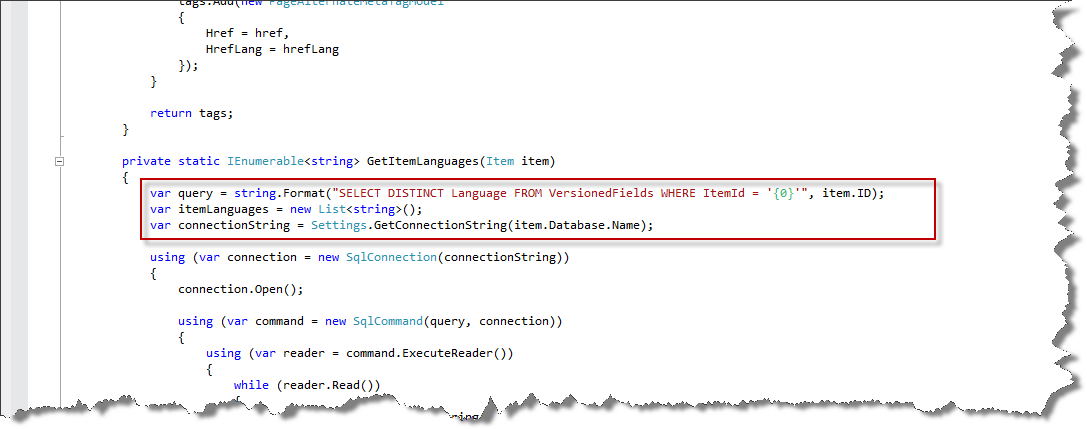
It didn’t take me long to find the following bit of code which calls the SQL server to find the languages for a given item:

languages

I was shocked that anyone would not use the Languages property on the Item class, which would have replaced the entire function.

I think in all my years of Sitecore development this is the worst bit of code I have ever seen, it shows  a complete lack of respect for the API and if  the site was upgraded it is possible that the database schema could change and therefore the code would break!

On average the SQL query took 400mS (which is quite slow, but then again the SQL server was getting hit by 4 front end servers for every request).

The same call to the Item.languages took 0.1mS, this simple change made every request 400mS quicker and reduced the load on the SQL server considerably.

How to kill Sitecore with a single comment

I spent a lot of time trying to figure out why a solution went into an infinite loop?
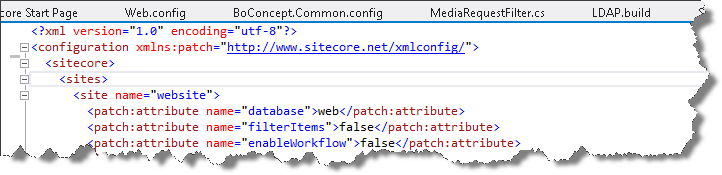
Well can you see the difference between the 2 following files taken from the APP_Config/include folder?

comment no comment
The only difference is the comment!

I naturally assumed that the comment could not cause the problems with the site and investigated all sorts of things.
I was so WRONG, because when I removed the comment – the site no longer went into an infinite loop and all was good again.

I determined that if you have a comment as the first element after the configuration or the sitecore element in a include file the rest of the file is ignored 😦

I have reported this to Sitecore, and they have confirmed that it is a bug and will be fixed ASAP.

I wrote this post in case anybody else out there is currently bashing their head against a wall because their site does not work, due to an include file being ignored.

Sitecore SPEAK Control view life cycle

Scenario

We implemented a custom data source control that retrieves messages from a web service. The data source has a number of properties, some of which are bound to other SPEAK controls for example:

  1. Sorting – Bound to List Control
  2. Search Text – Bound to Text box
  3. Message Type – Drop down

Therefore we need to wait until all the bound properties are set before we call the web service to avoid unnecessary web service calls.

Solution 1

In the model we detect when the last property is bound (i.e. its value changes from empty to some value). In this case we used the MessageType when it contained a value it was assumed it was OK to call the web service.

Problem

This worked until the server side control code was re-factored and the following code was called first in the constructor and not last:

  parametersResolver.GetString("MessageType", "messageType");

The “Get String” function is responsible for generating the data-sc-bindings attribute of the control, which defines the bindings and the order they are bound (probably requires another post to explain all the magic that SPEAK does here).

Therefore as this was now called first, not last, each time the search text, sorting was bound another web service call was made. We could not detect if search text or sorting parameters had been bound or not as either of these properties can contain an empty string. It is not a great strategy to check all the properties and try to determine if they are bound or not and or rely on the order they are bound.

Therefore I investigated the life cycle to determine if there is an event, trigger, etc. I could use to determine when binding for a control is completed.

Control View life cycle

The life cycle for a control’s view is implemented as a pipeline (see my previous post about pipelines). The pipeline defines 5 steps:

  1. Initialization – call the view’s initialize function
  2. Applying Cross Binding – Bind all the properties for the control, and child controls that have bindings.
  3. Before Render – If the view declares a beforeRender function it is called.
  4. Render – If the view declares a render function it is called.
  5. After Render – If the view declares a afterRender function it is called.

Solution 2

A very simple solution was to add a beforeRender function to the view (see image below) and set the isReady to true and call Refresh on the Model.

As beforeRender  is called after all the bindings are bound, the refresh function only needs to check if isReady is true before calling the web service. The Refresh function has to check isReady as it is called each time a property changes and or the first time it is bound.

before Render

Sitecore SPEAK Uploader File types

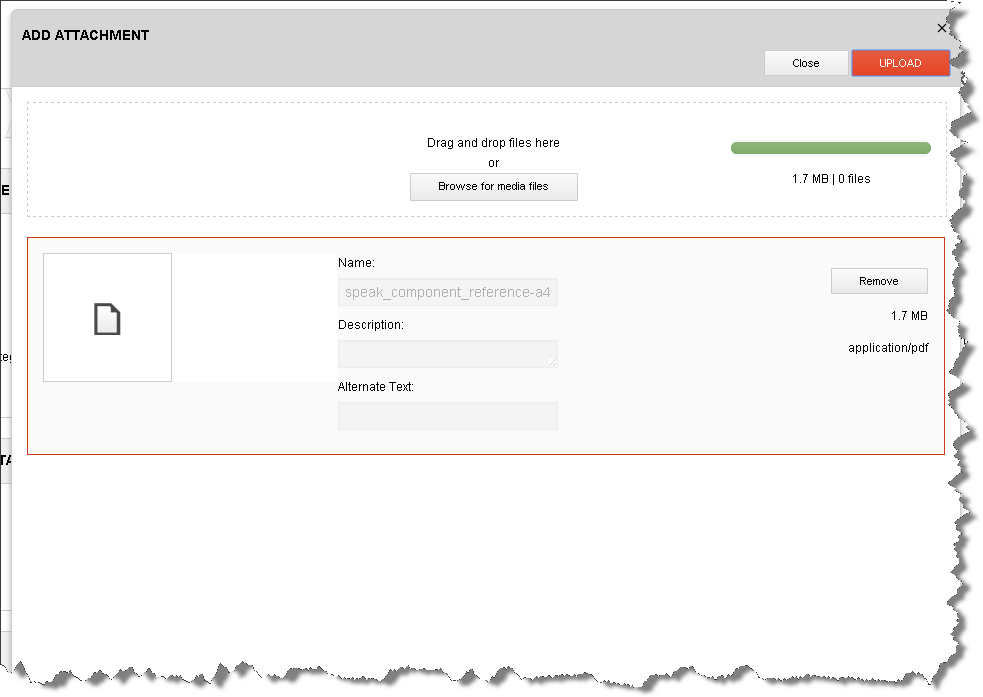
In a previous post I introduced the Uploader control, since then I noticed it wasn’t possible to attach pdf’s and or any other file type that was not an image.

Each time I uploaded a pdf file, it would put a red boarder around the file, and no item was created in Sitecore.

error

ImageTypes – Setting

After some investigation, I found that the ImageType setting in the web.config defines what image (files) types can be uploaded via the SPEAK uploader control. If you append “pdf” for example it is possible to upload pdf’s.

pdf


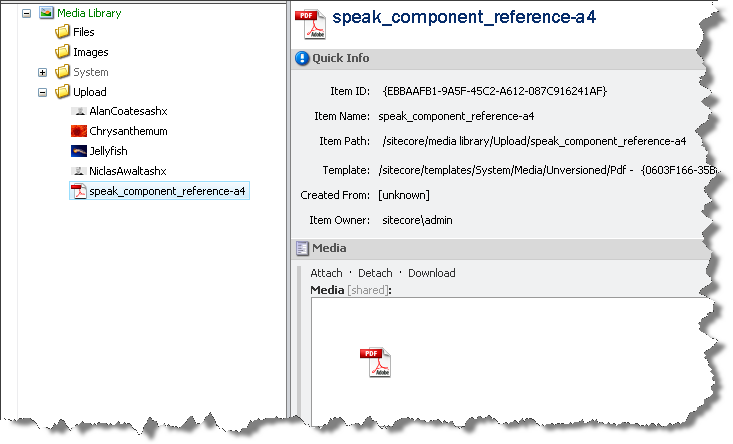
I don’t like that I have to specify that PDf is an image type, as this might have other unwanted side effects. But when using the SPEAK uploader control, it creates the correct item type (i.e. PDF).

item

Sitecore SPEAK – Dialog Rendering

The standard way to add/create dialog’s in SPEAK is to add the Dialog Window control, and then add the controls required by the dialog to the Dialog Window’s placeholders.
This has a number of disadvantages

  • Each new page that requires the dialog has to add all the renderings/settings that the dialog requires.
  • The code related for the dialog is added to the code page.
  • If you need to add/remove controls from the dialog you have to update all the pages that use the dialog
  • If you have a page with a lot of dialog’s the page will have a LOT of controls and all the code

In order to address the afore mentioned issues and enable reuse of dialog’s across a number of pages, we introduced the concept of a Dialog Rendering item; which contains all the renderings required by the Dialog, and defines its own sub-page code which contains the code required by the dialog.
In this blog we will create a attachment dialog, as the uploader control that comes with SPEAK is very cool (look out for an upcoming blog post)..

attachment dialog

Adding/showing a dialog

There are a 4 steps in order to add and then show a dialog:

  1. Create the Dialog Rendering Template. (Whilst this is not required, as you could add the layouts to any item, I would strongly recommend defining a template).
  2. Create the Dialog Rendering item
    1. Add the Dialog Window Control and add the required controls to the Dialog Window placeholder.
    2. Add a SubPageCode control and create the JavaScript which provides the functionality required by the dialog.rendering item
  3. Add the dialog to the page using Client side insert renderings.
    1. The guid is the rendering item id (i.e. the attachment item defined in step 2).
    2. Then save the dialog in the subpage controls list with a unique name.
contextApp.insertRendering("{26D93861-13E8-4416-8319-0D03094A19CB}", { $el: $("body") }, function (subApp) {
        contextApp["showAddAttachmentDialog"] = subApp;

      });

  1. To show the dialog the show function on the DialogWindow control has to be called. There are a number of ways this could be achieved, but I decided to implement it as follows
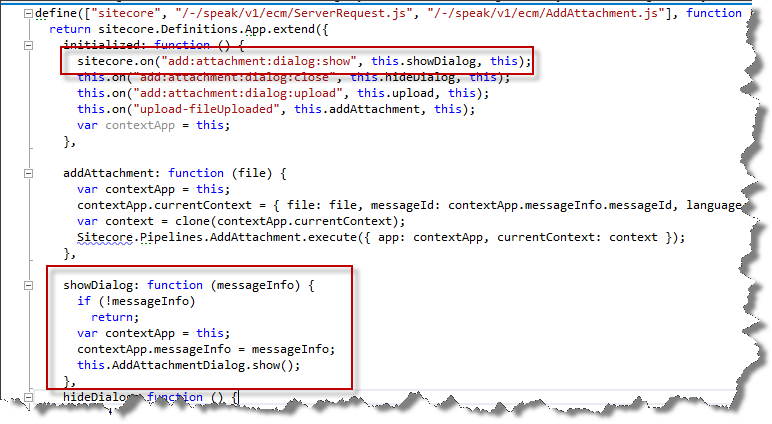
    1. In the initialize function for the dialog (SubPageCode JavaScript), set up an event handler to listen for a show event i.e. add:attachment:dialog:show.
    2. Define a showDialog function which calls the DialogWindow.Show().code
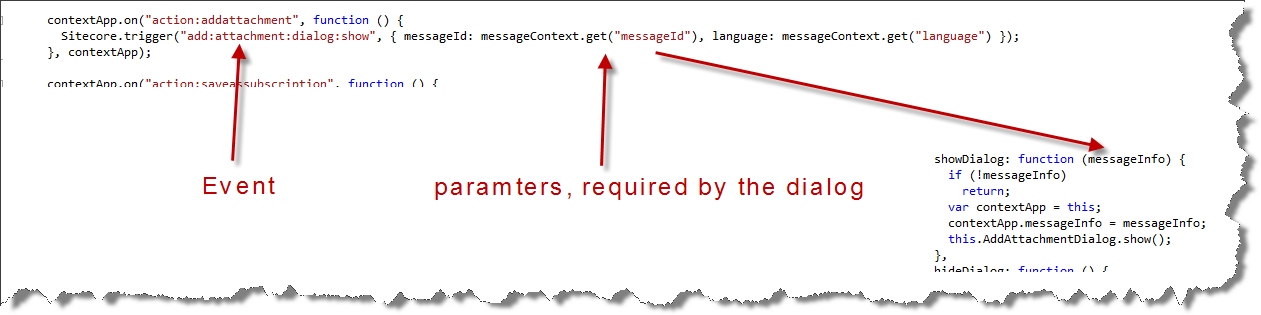
    3. To show the dialog, trigger the event and pass the in the required parameters.events & paramter

Context Issue

The dialog does not have access to the page’s context and controls; therefore you pass the required context via the event parameters.
This in fact reduces dependencies as the only dependency is the event parameters; therefore the dialog is not aware of where it is called from.